
How to Set Up Voting and Vote Rewards for Your Hytale Server
Learn how to enable voting and vote rewards on your Hytale server using Hyvote, Hytale Votifier, and the Nitrado WebServer plugin.

We have developed a voting system for Hytale servers, and are releasing it to the community as open source, with the goal of helping establish a shared standard for server voting.
The system is modelled very closely after the original Votifier-based implementations used in Minecraft and uses the webserver functionality recommended by Hytale to deliver vote notifications to servers.
To enable voting and vote rewards, you must install and configure two plugins, as well as the Nitrado WebServer plugin. The Nitrado WebServer plugin provides the HTTP webserver functionality used by Votifier. This is not an arbitrary design choice.
The Hytale Server Manual explicitly recommends using a webserver plugin to expose server functionality to external services. By building on the Nitrado WebServer, Hyvote’s voting system aligns with the recommended architecture for Hytale servers and ensures compatibility with other tooling that follows the same guidance.
1. Getting Started
Firstly, download and install the following plugins on your server: Hytale Votifier, Hytale VoteListener, and Nitrado WebServer.
| Plugin | Purpose | GitHub Repository |
|---|---|---|
| Hytale Votifier | Receives vote notifications from server lists | Hyvote/hytale-votifier |
| Hytale VoteListener | Handles vote rewards when a vote is received | Hyvote/hytale-votelistener |
| Nitrado WebServer | Provides the HTTP webserver used by Votifier | nitrado/hytale-plugin-webserver |
When the plugins are installed, proceed to the next step.
2. Configuring Hytale Votifier
There is very little configuration required for the Hytale Votifier plugin. The only value within config.json you may decide to change is debug, which by default is set to false.
This is intentional, as the debug output can be quite large, and it’s typically the VoteListener that you interact with.
In the keys folder, take a note of the content of the rsa.pub file. You’ll need to provide this to your server lists so they can talk to your WebServer and process your votes.
The Nitrado WebServer must be publicly accessible for voting to work correctly. This means the WebServer port must be open and reachable from the internet.
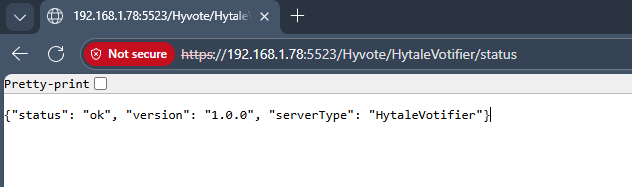
To verify that the Hytale Votifier plugin is exposed correctly, open a web browser and navigate to:
<your-ip>:<your-port>/Hyvote/HytaleVotifier/status
If the plugin is configured correctly, you should see a JSON response indicating that the Votifier endpoint is online. If you cannot access this URL, votes will not be delivered to your server.
3. Configuring Hytale VoteListener
Open the VoteListener config file. By default it should look something like the below. The main value you should be interested in here is the "commands" section.
Enter the commands that you wish to run when a successful vote has been received. Typically, this thanks the player in chat for voting and rewards them with an item or money.
There are other options available such as random rewards, streak bonuses, and milestone bonuses. As this is a basic tutorial, we’re only covering standard vote rewards here. More detailed documentation is available on our GitHub.
{
  "commands": [
    "say %player% has voted on %service%",
    "give %player% Weapon_Staff_Onyxium"
  ],
  "broadcast": false,
  "debugMode": false,
  "randomRewardsEnabled": false,
  "randomRewards": [],
  "streakBonusesEnabled": false,
  "streakBonuses": [],
  "milestoneBonusesEnabled": false,
  "milestoneBonuses": []
}
Save the config and restart your server if required.
4. Configure your server list entry
We run Hyvote, so that will be the server list used in this example. Log in with Discord, navigate to your profile, and edit your server (or add it if you haven’t already).
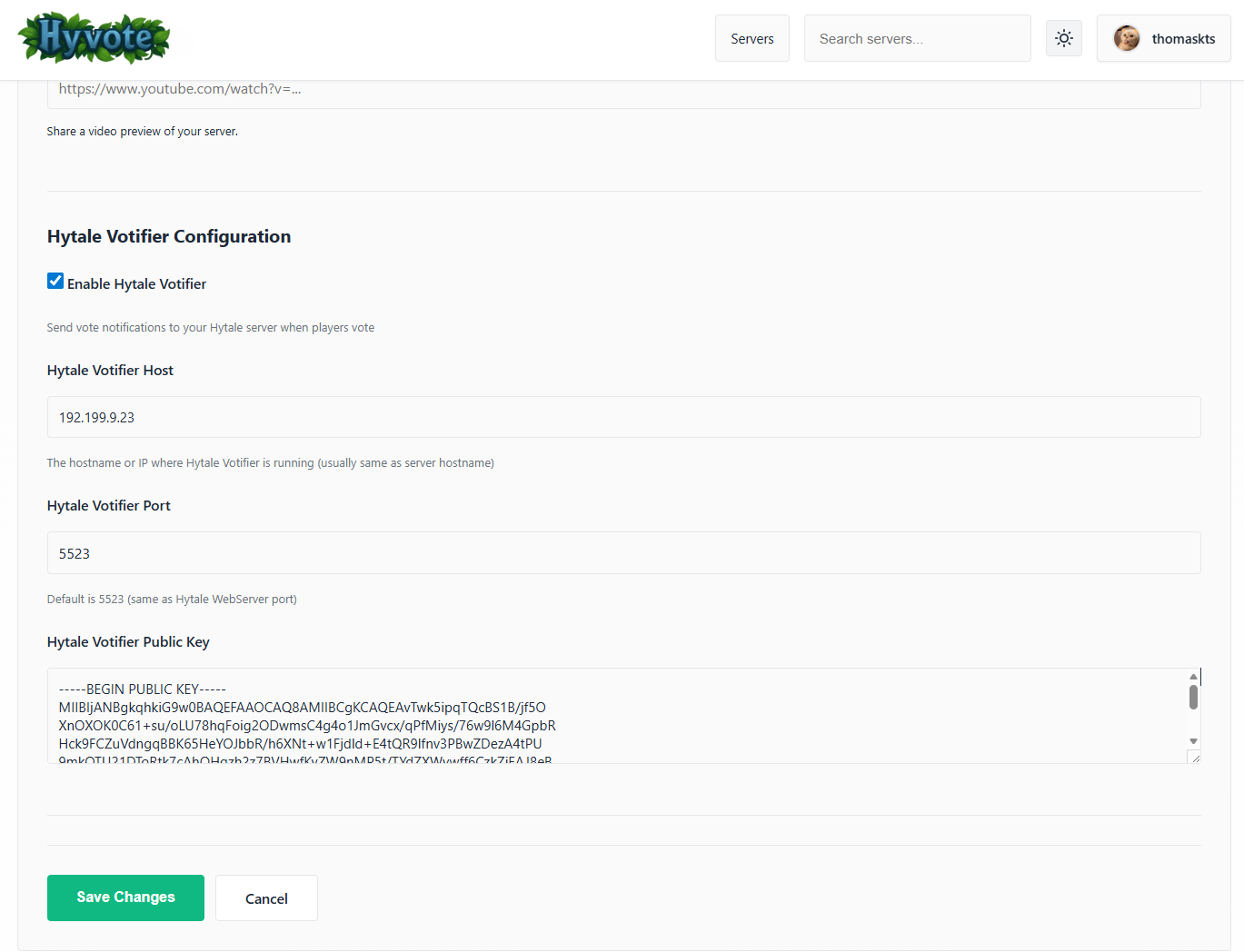
Scroll to the bottom of the server edit page and configure the following values:
| Field | Description |
|---|---|
| Hytale Votifier Host | The IP of your Nitrado WebServer, if not default |
| Hytale Votifier Port | The port of your Nitrado WebServer, if not default |
| Hytale Votifier Public Key | The contents of the rsa.pub file |
5. Test voting
Once configured, submit a test vote from Hyvote. If everything is set up correctly, you should see the configured commands execute in-game. At this point, voting is now fully enabled on your server.

Written by