
To list your Hytale server on Hyvote, your server must expose a public query endpoint so we can verify its status, player count, and basic metadata. This is done using the official Nitrado Hytale plugins, and as outlined in the server manual, is the recommended approach by Hytale.
This configuration is required on Hyvote and, because it follows the official Hytale system, it will almost certainly apply to other Hytale server lists as well.
This tutorial will walk you through each step of the process. By the end, you will have successfully have listed your server on Hyvote!
1. Install the Required Nitrado Plugins
You must have both of the following plugins installed:
| Plugin Name | Description | GitHub Repository |
|---|---|---|
| WebServer | Provides an internal HTTP server for plugins | nitrado/hytale-plugin-webserver |
| Query | Exposes server information through the WebServer | nitrado/hytale-plugin-query |
To install the plugins, download them from the GitHub links above and drop them into your plugins folder (On a Hytale server, the plugin folder is called /mods)
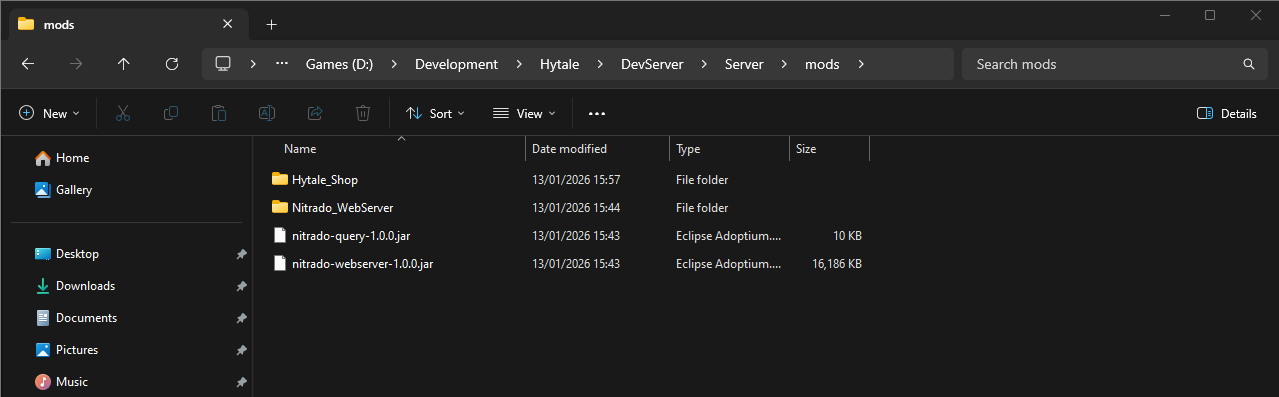
Important: The Query plugin will not work without the WebServer plugin. After installing both plugins, restart your server.
2. Allow Public (Anonymous) Query Access
Hyvote accesses your server information without authentication. To allow this, you must grant permissions to the built-in ANONYMOUS group.
Add the following to your permissions.json file:
{
  "Groups": {
    "ANONYMOUS": [
      "nitrado.query.web.read.server",
      "nitrado.query.web.read.universe"
    ]
  }
}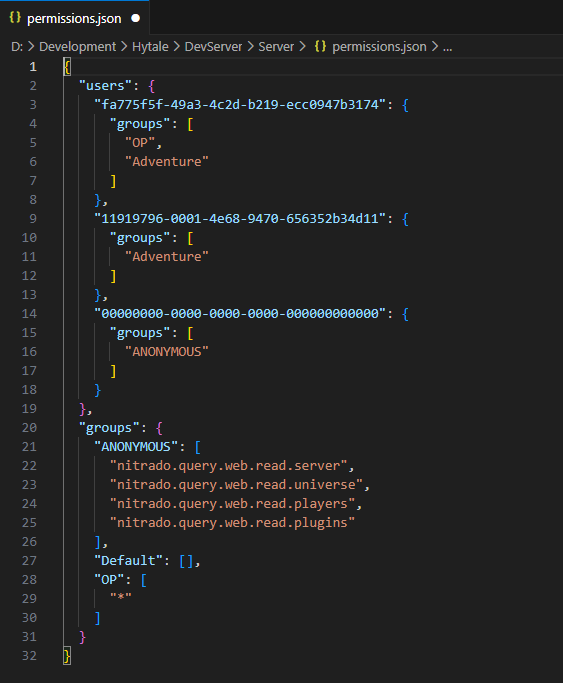
Without these permissions, Hyvote (and other server lists) will not be able to read your server data.
3. Network & Port Configuration
Default Ports
| Purpose | Default Port | Protocol |
|---|---|---|
| Game Server | 5520 | UDP |
| Query WebServer | 5523 | TCP |
Note: The WebServer port is typically the game port plus 3, but depending on your configuration, this may be different.
Shared Hosting & Firewalls
| Hosting Type | Action Required |
|---|---|
| Shared Hosting | Contact your host and ask for an open TCP port for the Hytale webserver |
| VPS/Dedicated Server | Configure your firewall to allow inbound TCP traffic on your webserver port |
4. Test you can access the web query
To test, open a web browser and navigate to yourip:port/Nitrado/Query. You should see a JSON response with your server information.
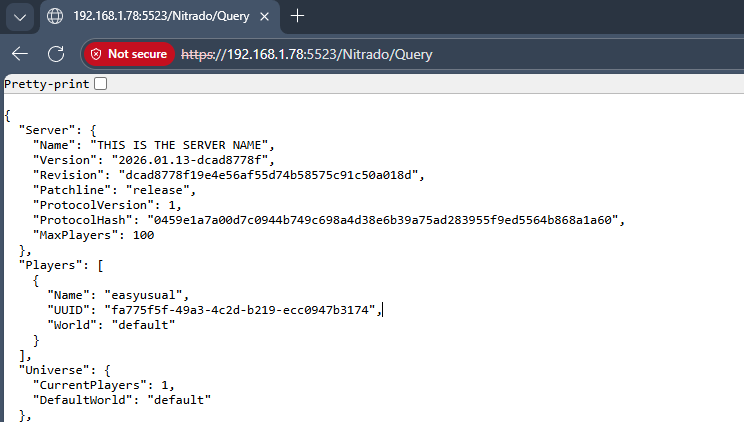
If you do, you're good to go!
5. Add your server to Hyvote
Now that you've installed the required plugins and updated your network settings, you're ready to list your server!
Log in with your Discord account, navigate to your profile, and select "Add Server". Fill in as much information as you can about your Hytale server - the more information you give, the more appealing your server will be to prospective players!
When it comes to entering a query port, by default we'll try and poll your server on port 5523. If you changed it to something custom, or your host has given you a different port, change the value.
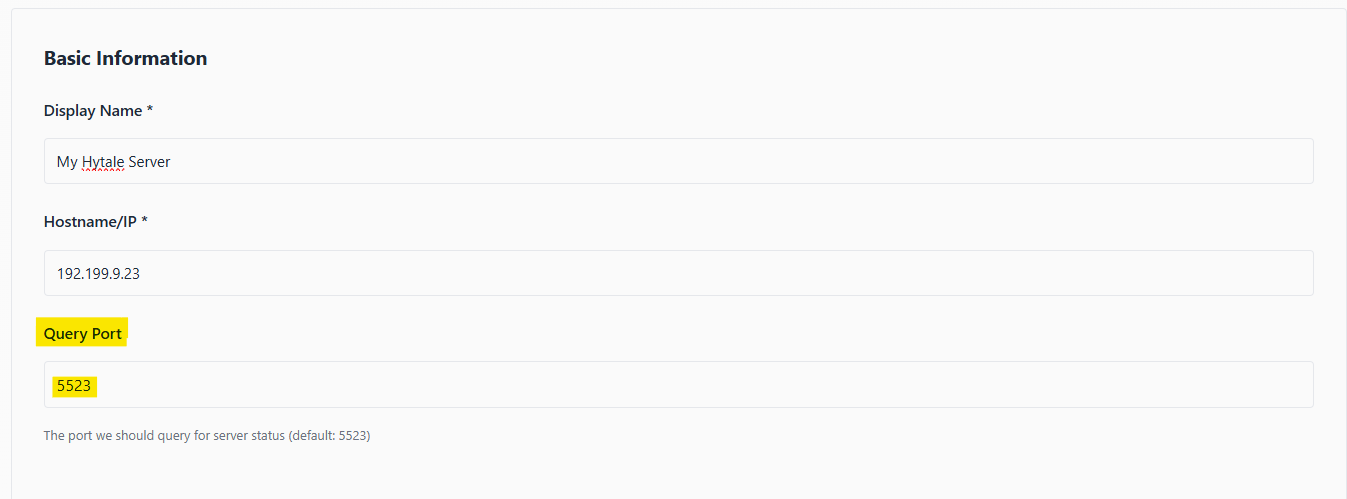
Press Add Server and you're good to go!